The Seed Game Engine
A Game Engine in C++
Project maintained by bielrabasa Hosted on GitHub Pages — Theme by mattgraham
About The Seed Engine
The Seed Engine is a rather ambitious project of two university studients. We are working on this during the assigment of Game Engine Development for the CITM degree in Video Game Design and Development.
About Us


The Seed is a tuple of two university students with a game engine project. The Seed engine was developed by Biel Rabasa and Roger Salas in 2022-23.
Biel Rabasa
I played videogames during my entire childhood, but i never knew that was what i would be doing when I grew up. I learned to program while being at school, and my passion for this sector has always brought me to it, so being able to connect videogames with it is probably the best decision I made. I’m passionate about data management, optimisation, entity pipelines and code management, so this project has been ideal to learn more about it.
· In this project I have contributed to:
- Game Object functionality
- All Component functionalities
- Render pipeline
- Game Object and Components pipeline
- Cameras, Meshes, Textures and Shaders
- Importing files (textures, meshes, shaders)
- Shader pipeline, default shaders & inspector
- Scene movement
-
Demo scene and water shader
- Github: Biel Rabasa
Roger Salas
I have always liked videogames, and for a few years before entering to study a career on them, I also like programming. At the beginning, and for lack of another method, I started with Unity but there were many things that I did not understand. That is why having the opportunity to do this project, I have been able to learn a lot and understand more thoroughly the things that I used when programming. I have also been able to come to see how complex everything is and now I am beginning to see what can really be done and that I am not that far away.
· In this project I have contributed to:
- Each window of the engine
- Console: show Logs and Errors in the engine
- Assets: show the files and folders in the Assets folder and open files
- Hierarchy: show and select the gameObjects in the scene and their children
- Inspector: show the components of the gameObject selected, where you can add more components and modify the variables
- Configuration: in this window you cna find some specifications of the engine and adjust some parameters
- Main Menu: some options tu use the engine, the play system
- Shader Editor: Load, edit, create, save and recompilate the shader you want
- Game: show the game with the POV of the game camera
-
Scene: you can see the scene and modify, you can select a gameObject clicking them
- Github: Roger Salas
Core Sub-System
- Game Objects:
- Everything in the scene is stored in game objects, they have variable components to add to them, in order to be fully personalisable.
- Game objects can be selected from the hierarchy window, this also makes the inspector appear.
- Game objects have parents and childs, which makes them interactuate in different ways.
- In the inspector, all of the selected game object components can be modified.
- Disabling game objects in inspector prevents rendering itself plus all of its childs.
- Components:
- Transform: stores the information of the local position, rotation and scale. Global position is calculed by their parent transform.
- Mesh: stores the meshes that are rendering every frame.
- Texture: stores the texture rendering on the component mesh meshes, can be changed to print no texture, or to print default checkers texture.
- Camera: stores the information of a camera Frustum, can be set to main camera in inspector to render in the Game window.
- Shader: stores the information of the rendering shader, document path and shader Uniforms. Allows recompilation of shader, compiling other document paths and Uniform variable modification. Shows errors of the compiled shader.
- Drag to scene:
- Any FBX or DAE can be dropped on the scene. A game object will be created with child objects that store their meshes, if the FBX has a texture, and is loaded in Assets folder, it will be loaded automatically.
- Any PNG, DDS or TGA image can be dropped on the scene. This will be loaded as the selected game object texture (creating a Texture Component if there isn’t one yet).
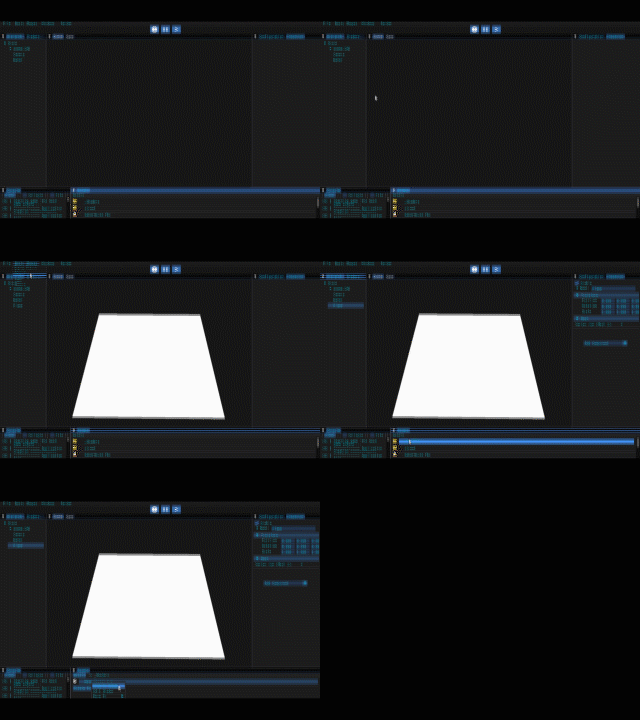
- Any TXT can be dropped on the scene. This will be loaded as the selected game object shader (creating a Shader Component if there isn’t one yet).
- Demo scene:
- A demo scene is loaded from the start.
- A camera is created and set to main camera (it has a predefined script to test Play/Stop/Pause/Speed buttons).
- A street environment is loaded with all textures (rendered in custom shaders).
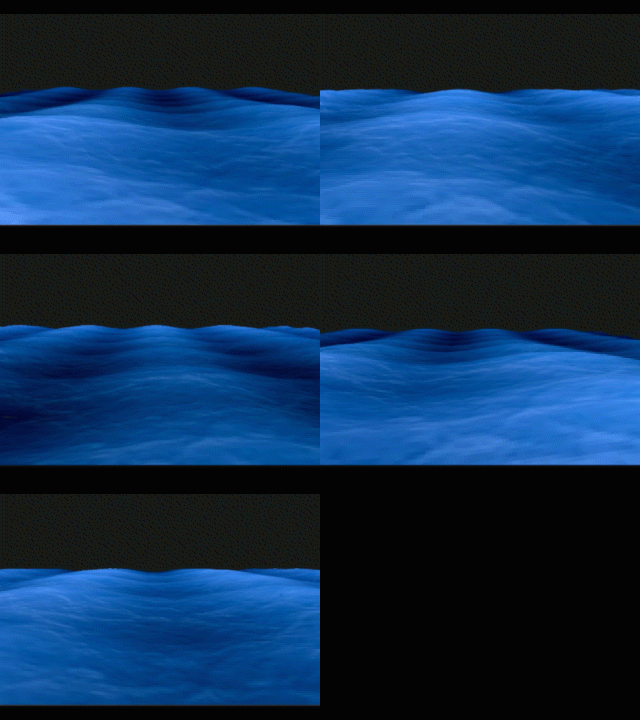
- A subdivided plane with a water shader loaded (_Shaders/WaterShader.txt file).
Shader Sub-System
* Shader Editor
- Window to edit shader .txt files with GLSL code language.
- Show editing document path.
- Editing document MUST be in _Shader folder.
- Create shader: creating document in _Shader folder with template GLSL code to print textures.
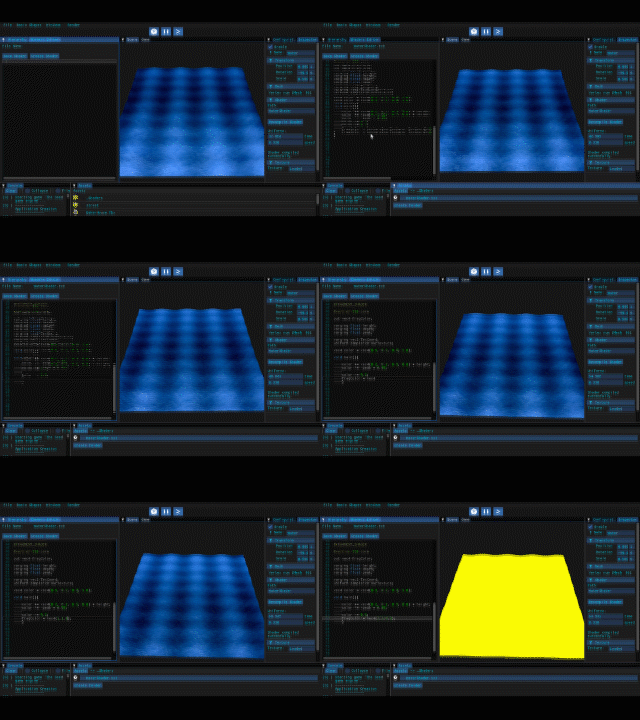
- Save shader: saving document in opened .txt and recompile all GameObjects with this shader.
* Shader Functionalities
- Draging shader from assets folder: creates Shader component or changes current one.
- Recompiling: recompiles currently using txt file.
- 1 Document shader for “vertex shader” & “fragment shader” separated by #VERTEX_SHADER & #FRAGMENT_SHADER.
- Editor saving document saves txt and recompiles all gameObjects using the document.
- Uniforms can be created in the code (sending void* and UniformType, demo in module dummy). ACCLARATION: not all types of uniforms work correctly, and not all types of uniforms update when modified in inspector (only float, int, float vectors and int vectors show in inspector).
- Compiling errors are shown in inspector, not in editor!
- Game Objects without shader (or with an error shader) are displayed by default with a custom shader texture (if they have texture) or with a custom default shader (if not).
Shader drag to scene
Shader editor save hot reload
Workflow Video
Licence
Copyright 2022 Biel Rabasa & Roger Salas
Licensed under the Apache License, Version 2.0 (the “License”); you may not use this file except in compliance with the License. You may obtain a copy of the License at
http://www.apache.org/licenses/LICENSE-2.0
Unless required by applicable law or agreed to in writing, software distributed under the License is distributed on an “AS IS” BASIS, WITHOUT WARRANTIES OR CONDITIONS OF ANY KIND, either express or implied. See the License for the specific language governing permissions and limitations under the License.